


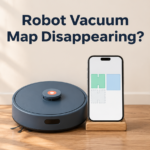


You open your app expecting a neat floor plan with rooms, zones and schedules, but the screen is blank or shows a messy half-map. If your robot vacuum map keeps disappearing, it is frustrating, yet it is usually a software or setup issue rather than broken hardware. This guide explains the real reasons, shows how to fix them step by step, and helps you keep your map stable for good.
Quick answer
Robot vacuum maps usually disappear because of a software update, moving the robot mid-run, an unfinished run that never saved, a moved dock, or Wi-Fi and account problems. Clean the sensors, keep the dock in one place, let one full mapping run finish at the dock, and save the map in the app.
9 reasons your robot vacuum map keeps disappearing (and how to fix each one)
1. A firmware or app update reset the data
Software updates sometimes change the map format, so old maps are wiped or marked invalid. Let the update finish fully, keep the robot docked during it, and run a new mapping cycle afterward. Check the release notes in the app if they are available.
2. You picked up or moved the robot while it was cleaning
Lifting the robot makes it lose its position, which is called the kidnapped robot problem. Some models then discard the run and the map. Avoid moving it mid-run, and if you must, send it back to the dock and let it start again.
3. The cleaning run did not finish or save
If a run is cancelled, the battery dies, or the robot gets stuck before returning to the dock, the new map may not be saved. Make sure the first mapping run finishes at the dock, and confirm the map appears under saved maps.
4. Multi-floor map settings are off
If you clean a second floor without turning on multi-floor mapping, the robot may overwrite the first map. Enable multi-floor maps in the app, and save each floor under its own name before moving the robot upstairs.
5. The dock was moved or is blocked
The robot uses the dock as its reference point. Moving it to another room or putting it where the robot cannot dock cleanly causes mismatched maps. Keep the dock on a wall with about 1.5 m of free space in front and 0.5 m on each side, and leave it in the same spot.
6. Wi-Fi or account problems
Many brands store maps in the cloud. A lost connection, a logged-out account or a changed region can make the map seem to vanish. Log back in, check you are using the same account and region, and reconnect the robot to the 2.4 GHz network.
7. The robot was reset or reinstalled
A factory reset, a reset after a repair or deleting and reinstalling the app can remove the map. Re-pair the robot, then run a mapping cycle again. Take a screenshot of your zones and schedules before resetting.
8. Changes in the room confuse the robot
Moving large furniture, closing doors, putting rugs down or changing the lighting can make the robot unable to match its saved map. Open all doors, restore the layout where possible, and run a fresh mapping cycle if the layout changed permanently.
9. Dirty sensors or a low battery
Dust on the lidar, bumper or cliff sensors causes mapping errors. A weak battery can also end a run early. Wipe the sensors with a dry microfiber cloth, charge the robot fully and start a new mapping run.
Step-by-step: rebuild your map the right way
- Charge the robot fully and update the app and firmware, then wait for the update to finish.
- Open all interior doors and pick up cables, socks and loose items.
- Place the dock against a wall in a spot you will not move again.
- Wipe the lidar, cliff sensors and bumper with a dry cloth.
- Start a full cleaning or mapping run from the dock and do not touch the robot.
- Wait until the robot returns to the dock and the app shows the finished map.
- Save the map, then split or merge rooms, name them and add no-go zones.
- Run a second cleaning to confirm the map is kept.
How to stop your map from disappearing again
- Do not move the dock once the map is made.
- Do not lift the robot while it is cleaning or returning.
- Update during a quiet time and keep the robot docked until it finishes.
- Turn on multi-floor mapping if you have more than one level.
- Keep a screenshot of your rooms, zones and schedules for easy rebuilding.
- Use the same account and the same region in the app.
- Keep sensors clean and the battery healthy.
When should you contact support?
- The map vanishes after every run even after a clean remap.
- The robot cannot find its dock or keeps getting lost.
- The app shows an error code about the map, storage or sensors.
- A firmware update fails repeatedly.
Have your model number, firmware version and a short description of what happens ready, so support can help faster.
Features to look for in a robot vacuum with reliable maps
- LiDAR navigation for precise, repeatable mapping.
- Multi-floor map storage with at least three saved maps.
- Cloud backup and map restore to recover from resets.
- Resume cleaning after recharging without losing position.
- Easy map editing for rooms, no-go zones and virtual walls.
- Stable app and regular firmware support.
- Good obstacle detection so the robot does not get stuck and lose its position.
Frequently asked questions
Why did my robot vacuum forget its map?
The most frequent causes are a software update, moving the robot mid-run, a run that never saved, or a reset. Check the saved maps list in the app first.
Can I recover a deleted robot vacuum map?
Some brands keep map history in the cloud or backups, so look for a map restore or history option in the app. If it is not available, you will need to remap.
How many times does it take to build a good map?
Usually one complete run from the dock is enough. Some models need two or three runs to refine rooms and obstacles.
Should I edit the map right after the first run?
Wait until the robot has finished and docked. Then merge or split rooms, name them and add no-go zones.
Does moving the dock delete the map?
Not always, but a different dock location often confuses the robot. If you must move it, remap the home afterward.
Final thoughts
A disappearing map is almost always about how the robot was moved, updated or stored, not a broken machine. Fix the dock position, give the robot one uninterrupted mapping run, save the map and keep your app and firmware stable. If the problem still repeats, a model with strong LiDAR mapping and cloud backup will save you from remapping again and again.
Disclosure: this site may earn a commission from qualifying purchases at no extra cost to you.